Confluence (@hesed/conni)#
The @hesed/conni plugin lets you manage Confluence pages and spaces from the terminal. It is preinstalled with Sidekick.
Prerequisites#
- An Atlassian account with access to a Confluence space
- A Jira/Atlassian API token (same token used for the Jira plugin — see below)
Step 1: Get your Atlassian API token#
If you already set up the Jira plugin, you can reuse the same API token. Otherwise:
- Log in to your Atlassian account at https://id.atlassian.com
- Click your profile avatar in the top-right corner
- Select Account settings
- Navigate to the Security tab
- Under API token, click Create and manage API tokens
- Click Create API token
- Give it a label (e.g.,
sdkck-cli) and click Create
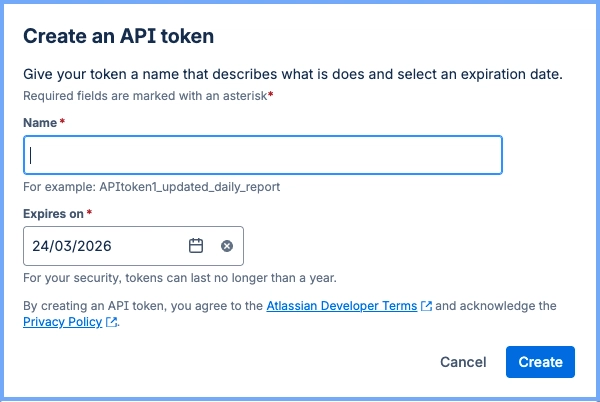
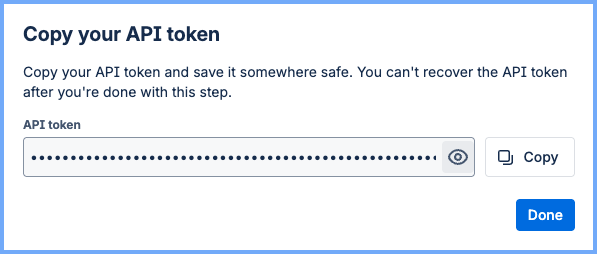
- Copy the token immediately — it won't be shown again
Step 2: Configure auth in Sidekick#
sdkck conni auth addYou will be prompted for:
- Confluence domain — your Atlassian base URL (e.g.,
https://yourcompany.atlassian.net) - Email — the email address of your Atlassian account
- API token — the token you copied in step 1
Step 3: Verify the connection#
sdkck conni auth testExample commands#
# List spaces in your Confluence instance
sdkck conni space list

# Search for pages
sdkck conni content search 'space=DEV AND title ~ "Implement email OTP login" AND creator=currentUser()'

# Get a specific page by ID
sdkck conni content get 1544060948

# Create a new page
sdkck conni content create --fields spaceKey="DEV" title="Page with files" body="Content" --attach ./image.png --attach ./report.pdf
Discover all commands#
sdkck help conniTroubleshooting#
401 Unauthorized
- Verify the API token belongs to the account you entered as the email
- Check that the token has not been revoked
Space or page not found
- Confirm the Atlassian account has permission to access the target Confluence space
Domain format
- Include
https://and no trailing slash:https://yourcompany.atlassian.net - Confluence Cloud is hosted under the same domain as Jira Cloud