Jira (@hesed/jira)#
The @hesed/jira plugin lets you create, search, and manage Jira issues directly from your terminal. It is preinstalled with Sidekick — no manual plugin installation needed.
Prerequisites#
- An Atlassian account with access to a Jira project
- A Jira API token (see below)
Step 1: Get your Jira API token#
Jira uses API tokens — not passwords — for CLI authentication.
- Log in to your Atlassian account at https://id.atlassian.com
- Click your profile avatar in the top-right corner
- Select Account settings
- Navigate to the Security tab
- Under API token, click Create and manage API tokens
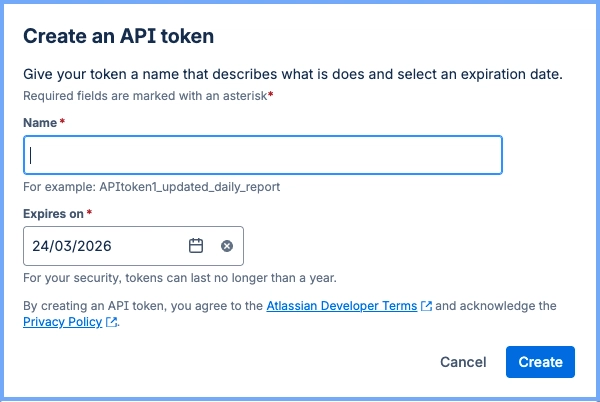
- Click Create API token
- Give it a descriptive label (e.g.,
sdkck-cli) and click Create
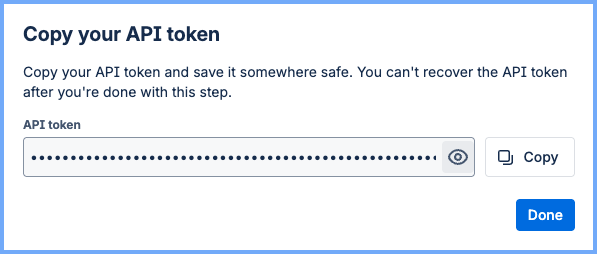
- Copy the token immediately — it won't be shown again
Step 2: Configure auth in Sidekick#
sdkck jira auth add
You will be prompted for:
- Jira domain — your Jira base URL (e.g.,
https://yourcompany.atlassian.net) - Email — the email address of your Atlassian account
- API token — the token you copied in step 1
Step 3: Verify the connection#
sdkck jira auth testExample commands#
# Get an issues
sdkck jira issue get PROJ-123

# Create a new issue
sdkck jira issue create --fields project='{"key":"PROJ"}' summary="New summary" description="New description" issuetype='{"name":"Dev Task"}'

# Search issues by JQL
sdkck jira issue search 'project=PROJ AND summary ~ "Error saving file" AND status IN ("ready", "in progress")'

# Add comment to an issue
sdkck jira issue comment PROJ-123 "# Header\n- Item 1"
Discover all commands#
sdkck help jiraTroubleshooting#
Auth error — 401 Unauthorized
- Verify the API token belongs to the account you entered as the email
- Ensure the token has not been revoked or expired
Domain format
- Include
https://and no trailing slash:https://yourcompany.atlassian.net
No projects visible
- Confirm the Atlassian account has permission to browse the target project